Microsoft 365 mailboxes, in one sign-in
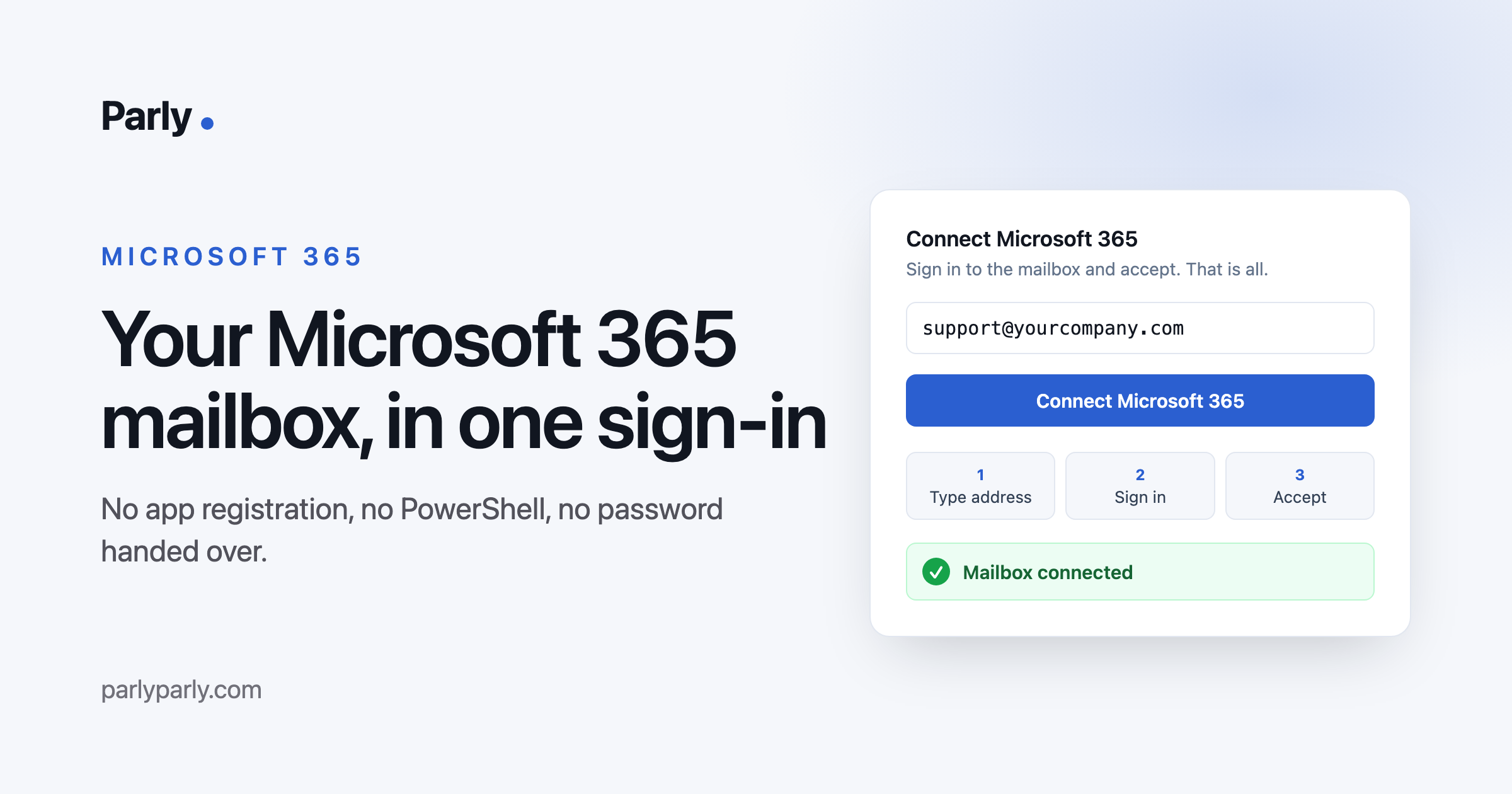
Connecting a Microsoft 365 mailbox to Parly used to mean registering an app in Entra, granting permissions and running Exchange PowerShell. Now it is a sign-in: press Connect Microsoft 365, sign in to the mailbox, accept, and new mail arrives within minutes. Parly never sees the password, sends through Microsoft Graph so SMTP can stay off, and renews its access on its own. Where an organisation requires it, an admin approves Parly once.
It used to take an afternoon and a PowerShell window
Until this week, connecting a Microsoft 365 mailbox to Parly was a job for whoever runs your Microsoft tenant, and not a small one.
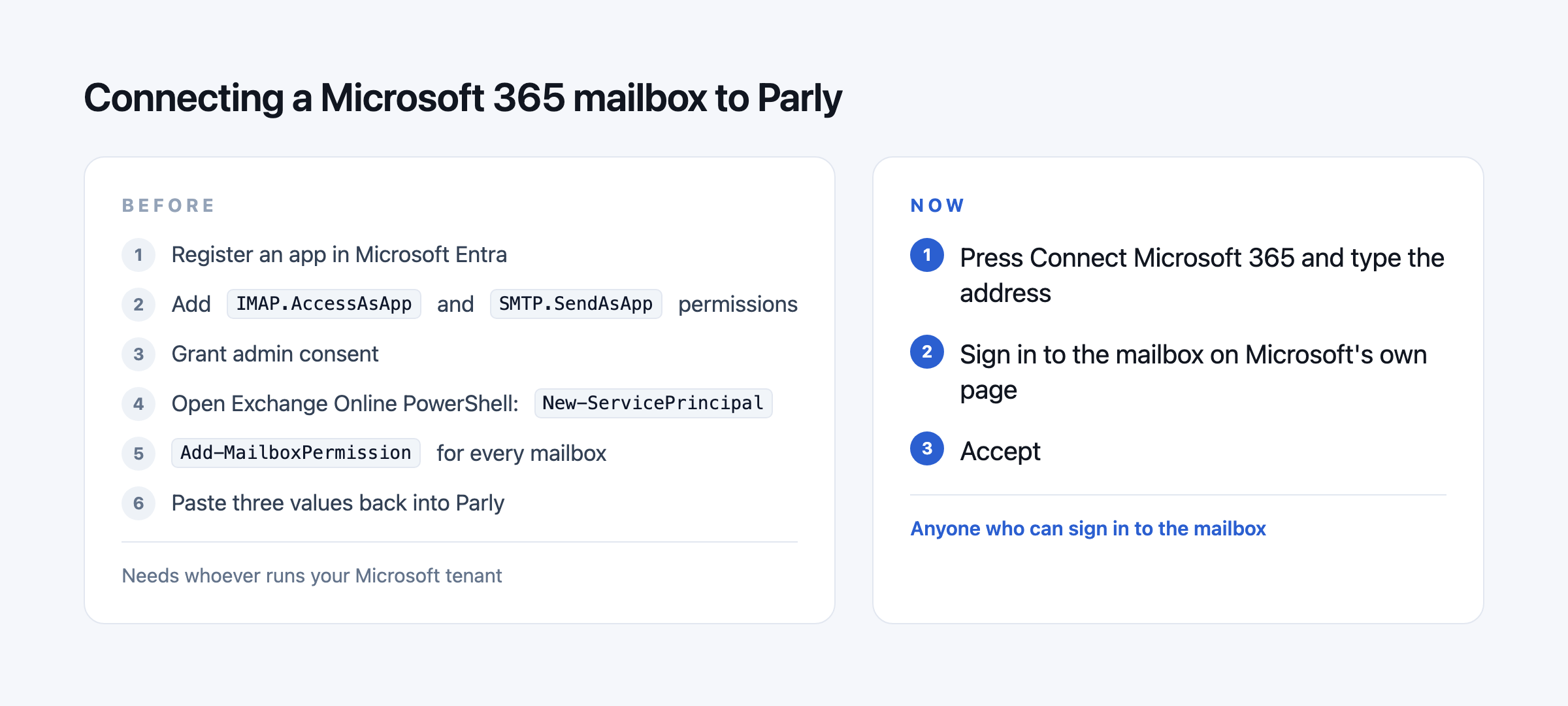
Microsoft switched off password sign-in for IMAP some time ago, and for SMTP on 30 April 2026. A mailbox on Exchange Online no longer accepts a password from any outside app, however it is configured. What it accepts is a token, and the only way we offered to get one was the route built for background services: register an app in Entra, grant it application permissions, give admin consent, then open Exchange Online PowerShell to create a service principal and grant it rights on each mailbox. Three values from all that got pasted back into Parly.
It worked. It also meant that the teams most likely to want a shared inbox, the ones without an IT department, were the ones least able to connect one. A shared mailbox on Microsoft 365 is about the most common mailbox there is, and it was the hardest one to bring in.
Now it is a sign-in
In Parly, go to Admin, Mailboxes, and press Connect Microsoft 365. Type the address. Microsoft opens its own sign-in page, you sign in to that mailbox, you see the list of what Parly asks for, and you accept. You land back in Parly with the mailbox connected. New mail starts arriving within a few minutes.
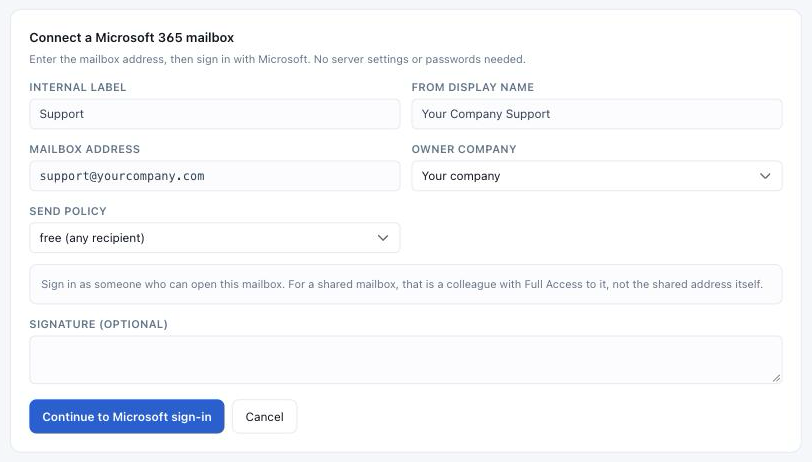
For a shared mailbox, such as support@ or info@, you sign in as a colleague who has access to it rather than as the shared address itself. The form says so, because it is the one step people get wrong.
There is nothing to register, no PowerShell, no server names to look up and no password to hand over. Parly never sees the password at all: Microsoft signs you in and gives Parly a token that only covers what you approved.
What Parly asks for, and why
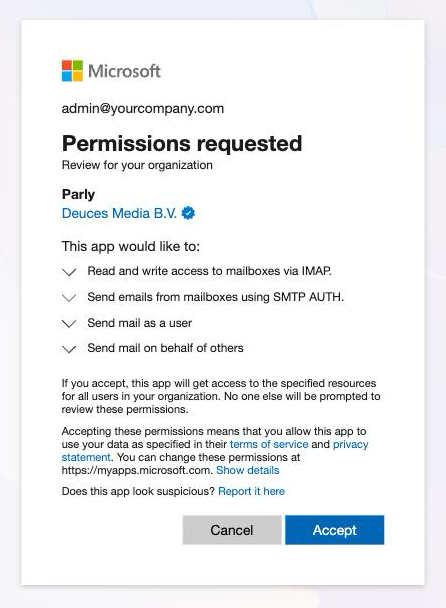
The consent screen lists four things, and each one has a job.
Read and write access to mailboxes via IMAP. This is how new mail reaches Parly. Parly checks the mailbox for mail that arrived since the last look and brings it in. It starts from the moment you connect, not from the bottom of ten years of history.
Send mail as you, and on behalf of others. When someone on your team replies from Parly, or from Slack or Teams through Parly, the answer goes out from the mailbox itself, from your own address, and lands in the customer's existing thread.
Send email using SMTP. A fallback. Parly sends through Microsoft Graph first, precisely because SMTP sending is switched off by default on Microsoft 365 and only an admin can switch it back on per mailbox. With Graph, nobody has to.
That is the whole list. Parly does not ask for your calendar, your files or your directory.
The publisher is on the screen
Microsoft shows who is asking. For Parly that is Deuces Media B.V., with Microsoft's blue verified badge next to it. The badge means Microsoft has checked that the company behind the app is who it says it is, through its partner program. Many organisations only let their people approve apps from a verified publisher, so for them this is the difference between connecting and being stuck.
When your organisation says "ask an admin"
Some organisations do not let ordinary users approve mailbox access for any app, and Microsoft's own default settings lean that way for anything that touches mail. If that is you, the sign-in ends on a page that says the app needs admin approval.
That is a one-time step. Someone with admin rights in your Microsoft tenant approves Parly for the organisation once, and from then on everyone connects with the plain sign-in above. Nobody gets asked again.
What happens afterwards
The token Microsoft hands out is kept encrypted, and Parly renews it on its own. You do not reconnect every hour, or every month.
If access is ever withdrawn, because a password changed, an admin revoked the app or the mailbox moved, Parly does not quietly stop. The mailbox is marked as needing a reconnect, and the fix is the same sign-in you did the first time.
And if your mailbox is not on Microsoft 365 at all, nothing changed for you. Any mailbox that speaks IMAP still connects the way it always did.
The point of it
Parly is a shared inbox for teams that already have one, sitting in Outlook, used by four people who all read the same mail. Most of those mailboxes live on Microsoft 365. Connecting yours should take less time than reading this, and now it does.